Development Build
-
React native app consists of 2 parts:
1. Native app bundle: Which is installed on physical device
2. Javascript bundle: that runs inside it Expo Go app serves itself as Native app bundle.
In development build we will be creating native app bundle ourself instead of relying on already published app(like expo Go) This provides full control over native runtime allowing to install native libraries, even write our own native code.
- Expo Go Build vs Development Build
| Expo Go build | Development build | |
|---|---|---|
| Install some 3rd party libraries(ie Community developed) | No | Yes |
| Sandbox | Yes | No |
| production ready | No | Yes |
| Support functionalities(Notification, Oauth authentication, analytics) | No | Yes |
Create development build
1. Using EAS (Cloud)
-
EAS(Expo Application services)
is used to build app on cloud and install on real device. We can
distribute apk/aab(Andriod), ipa(IOS)
-
Steps of creating apk using EAS (cloud)
- Pre-requisite: You have created my-app project as mentioned in this document.
//Install eas cli(EAS CLI is the command-line app that you will use to interact with EAS services from your terminal)
C:\react\my-app>npm install -g eas-cli

// Create account on https://expo.dev/

C:\react\my-app>eas login
√ Email or username ... reachtotushar
√ Password ... ********
Logged in

C:\react\my-app>eas whoami
reachtotushar

//Initialize EAS in Your Project
$ eas init
Link this project? ... yes

// Create a development build, which is a debug build of your app
$ npx expo install expo-dev-client

// Andriod development build
$ eas build -p android --profile development
√ What would you like your Android application id to be? ... com.reachtotushar.myapp  //Press Enter
√ Initialized versionCode with 1
√ Using remote Android credentials (Expo server)
√ Generate a new Android Keystore? ... yes
√ Created keystore
See logs: https://expo.dev/accounts/reachtotushar/projects/my-app/builds/693d25d7-c79d-4ff5-b563-033312a8fc79
Waiting for build to complete. You can press Ctrl+C to exit.
- Build in progress...

// ios development build
$ eas build -p ios --profile development
This will upload project on cloud
where its build an signed
-
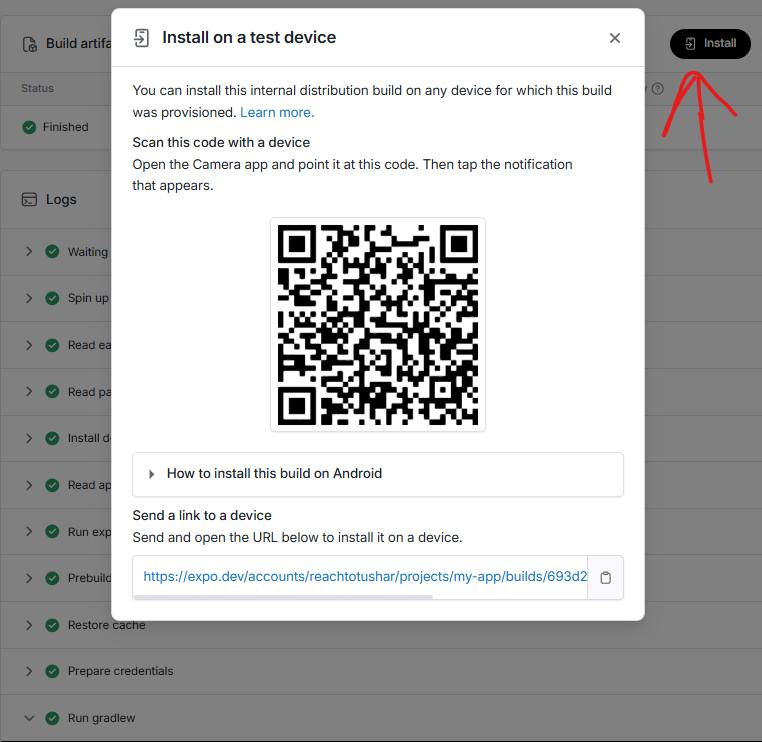
2. Open expo.dev link provided in logs and check status
Scan the QR Code, It will download apk file on your Phone
Click on apk file, app would be installed on your phone
2. Create locally. expo-dev-client
Install Android Studio and/or Xcode.
Ensure you have Node.js and npm installed.
$ npx create-expo-app@latest        //Create project
$ cd my-app
$ npx expo install expo-dev-client

// expo-cli is not required to be installed. This was used for classic expo workflow

//This command creates the /android and /ios directories
// converting your project to Expo's bare workflow.
// Expo cannot generate the ios directory unless you are on macOS with Xcode installed.
$ npx expo prebuild     //Generate Native Code (Prebuild)

$ npx expo run:android